Local
Deploy an MCP server from agentregistry to your local environment.
Local deployments spin up Docker containers on your local machine from images that exist on your machine or that can be pulled from the image location reference that agentregistry points to.
Before you begin
- Follow the Get started guide to set up agentregistry and start the agentregistry daemon.
- Publish an MCP server.
Deploy the MCP server
-
List the MCP servers that are published to agentregistry.
arctl mcp listExample output:
NAME VERSION TYPE DEPLOYED UPDATED user/my-mcp-server 0.1.0 oci False 2h -
Deploy the MCP server to your local environment. The following command spins up a Docker container from the
user/my-mcp-serverartifact reference that is published in agentregistry. In your CLI output, get the address that the MCP server is exposed on.arctl deployments create user/my-mcp-server \ --type mcp \ --version 0.1.0Example output:
Deployed user/my-mcp-server (v0.1.0) with providerId=local

Server deployment recorded. The registry will reconcile containers automatically.
Agent Gateway endpoint: http://localhost:21212/mcp
If the deployment fails, a deployment entry is still created in the database and set to failed. You can view failed deployments by using thearctl deployments listcommand. Note that you cannot re-deploy a failed deployment to fix it. Instead, remove the failed deployment witharctl deployments delete <deployment-ID>and then re-run thearctl deployments createcommand. -
Open the MCP inspector.
npx modelcontextprotocol/inspector#0.18.0 -
Connect to your MCP server. Enter the following details.
- Transport type: Select Streamable HTTP.
- URL: The MCP server URL that you retrieved earlier, such as
http://localhost:21212/mcp. - Click Connect.
-
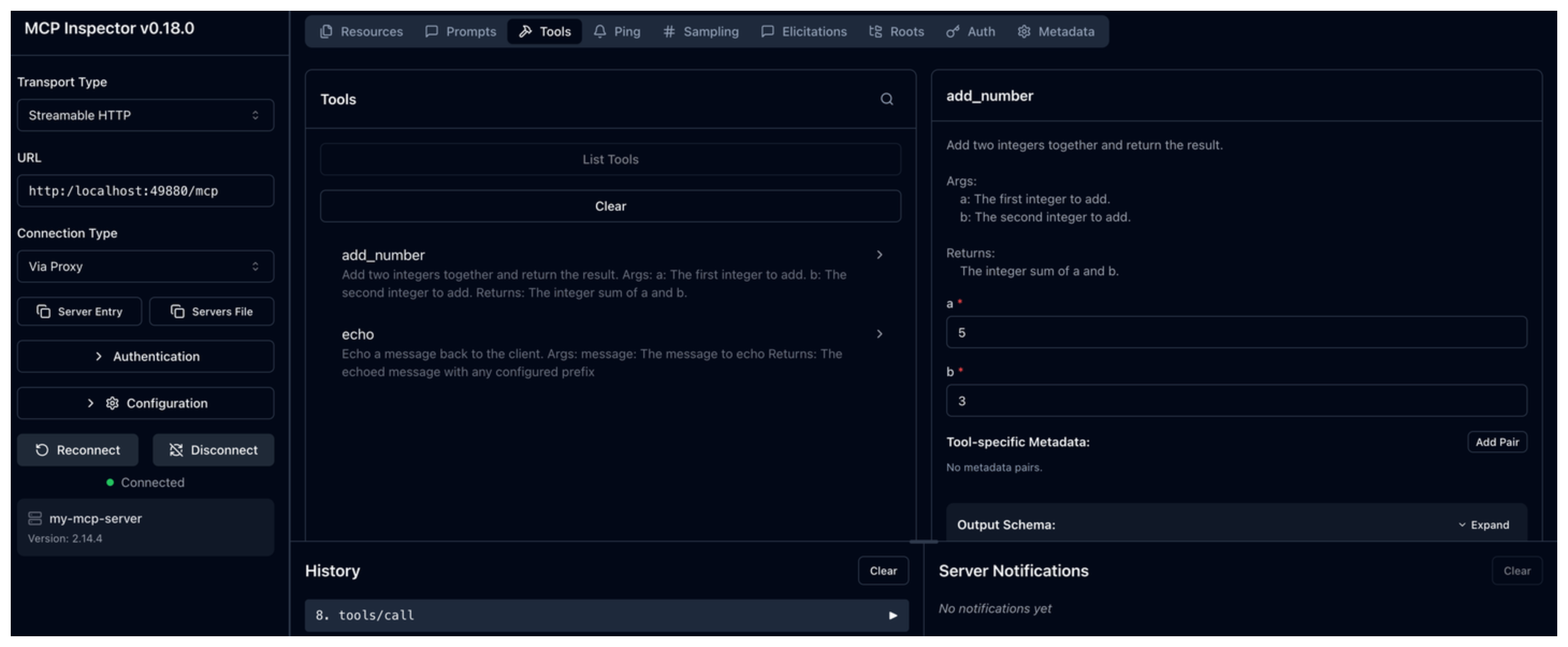
Go to the Tools tab and verify that you see the newly added
add_numbertool. Try out the tool by entering two integer numbers, such as 5 and 3. Then, click Run Tool. Verify that the sum of both numbers is returned.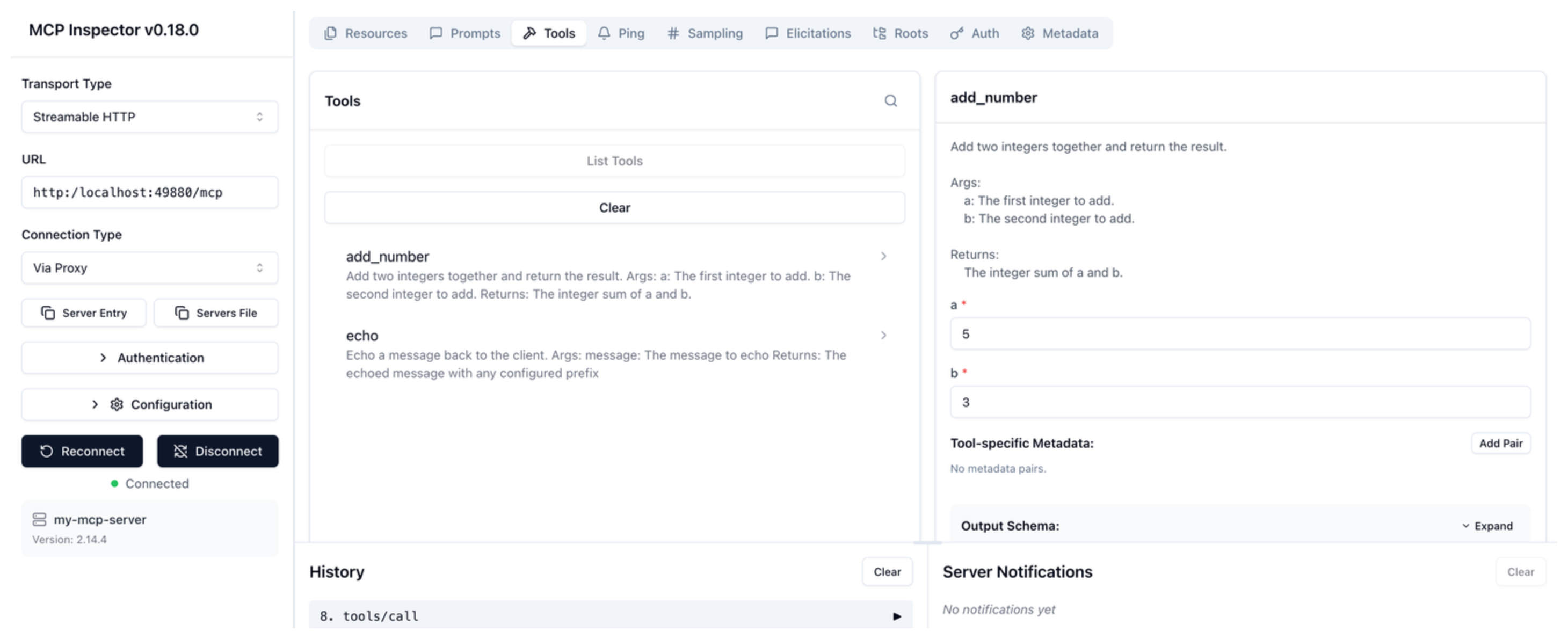
Cleanup
You can remove a deployment from the UI or CLI.
- Open the agentregistry UI and go to the Deployed view.
- Find the MCP server deployment that you want to remove and click the trash icon.
-
List the deployments in your environment and find the one that you want to delete.
arctl deployments list -
Remove the deployment.
arctl deployments delete <deployment-ID>